COMPADRE Controller App – Quick Start
Connections
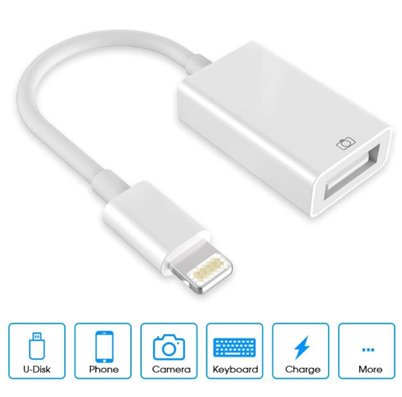
Option 1: Wired connection - Lightning to USB Adapter & USB to MIDI Connector
Also
known as an iPhone camera adapter.
You
can use an official Apple one or a cheap clone works just as well.
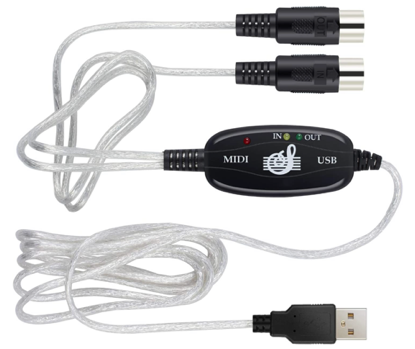
You
also need a way of connecting USB to MIDI – a cheap adapter like this works ok.

Option 2: Wireless connection - Wireless Bluetooth MIDI
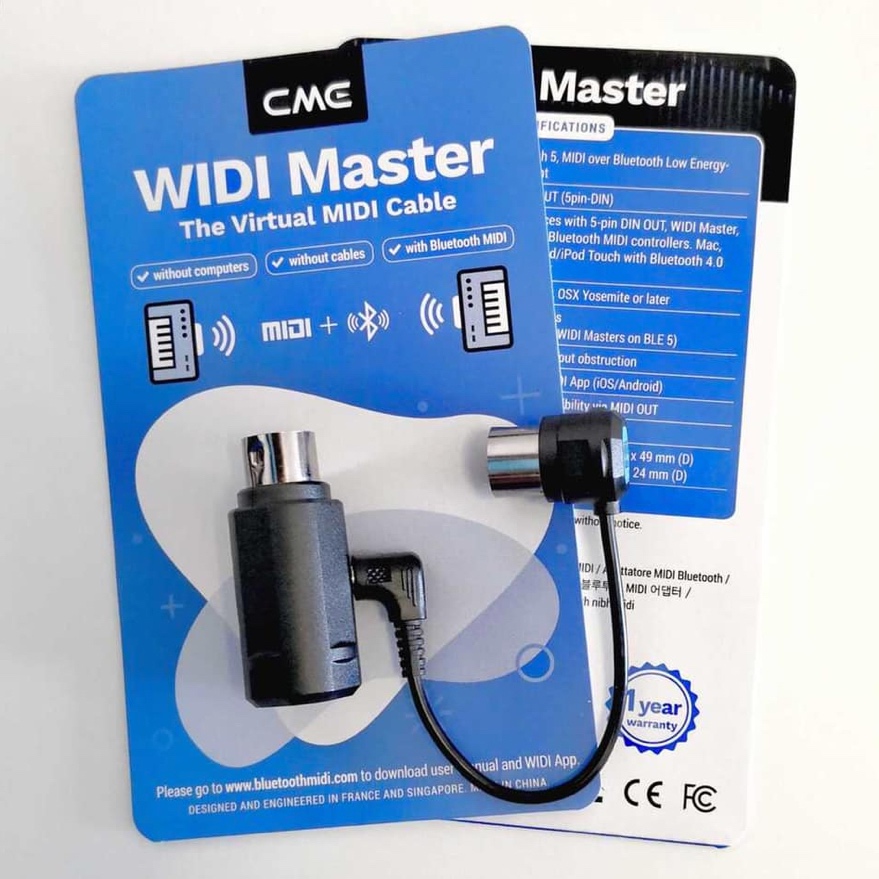
You can connect from
the app wirelessly to a WIDI Master for a Bluetooth MIDI connection.
In either case you need to connect
MIDI to Compadre
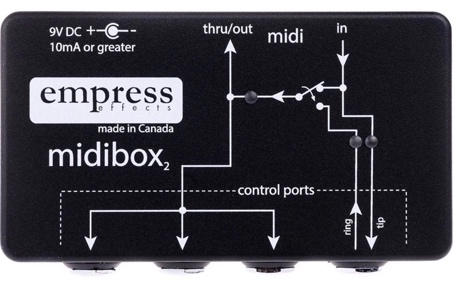
The Compadre has a ¼”
TRS jack for MIDI input so you need to find a way of converting the MIDI 5-pin
connector to a ¼” jack. For example, you
can use an Empress midibox2 which has MDI 5-pin input and 4 x jacks out. Chase Bliss Midibox is another similar
product.
Compadre Controller Firmware
Make sure you have up
to date firmware installed. Use the Strymon Update App on a PC or MAC to do
this. If you do a factory reset, then update the firmware to the latest
version.
The Compadre
Controller App has been tested with version: 1.05
The Compadre Controller App
All connected? Right
here we go…
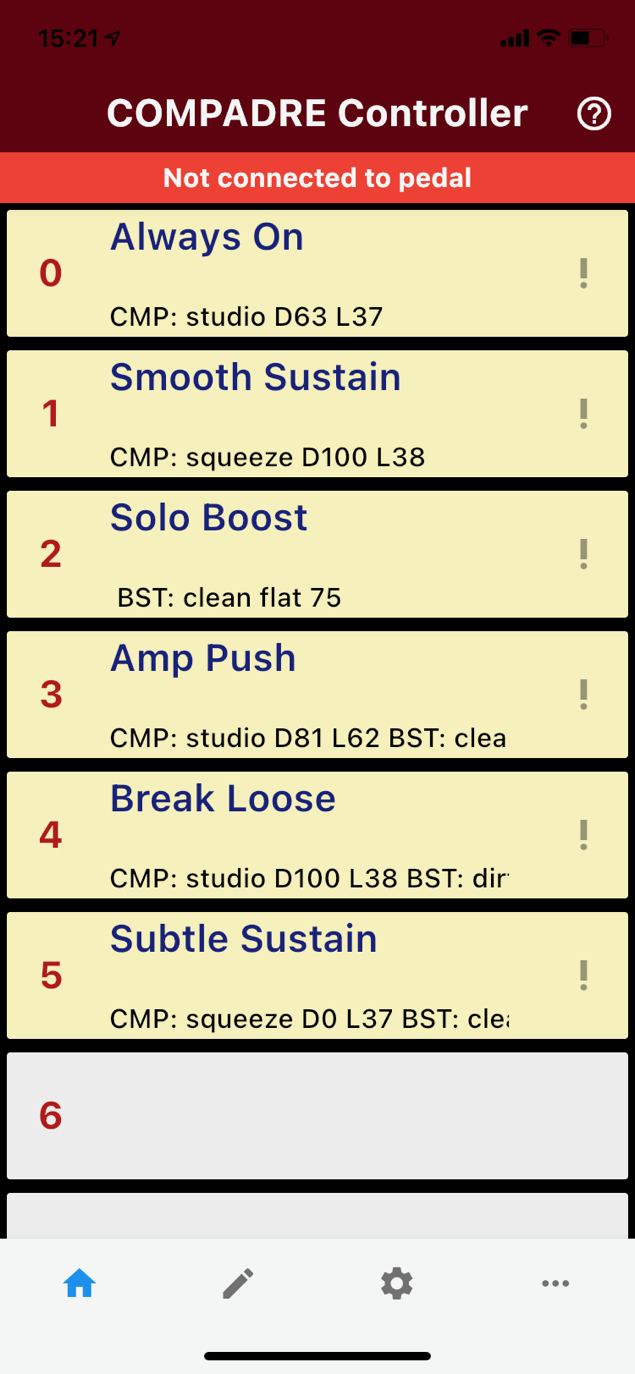
Here’s the Home Screen
NOTE: Loading up
the app and majority of functions will not change anything on your pedal. If
you already have patches on the pedal, they will not be changed – unless you sync
them.
The app starts off
preloaded with the example patches from the Compadre manual.
The patches are colour
coded:
WHITE – Unedited.
YELLOW – Edited. The patch is setup on the phone but
is not saved in the pedal.
GREEN – Settings in the App have been sent and saved
to the pedal. When patches are green, then you can use any MIDI controller to
simply send a Program Change to recall the state.
At the top of the
screen, in red, it says: Not connected to pedal
Let’s get connected…
Connect the App to the
Pedal
Go to the Settings
Screen:
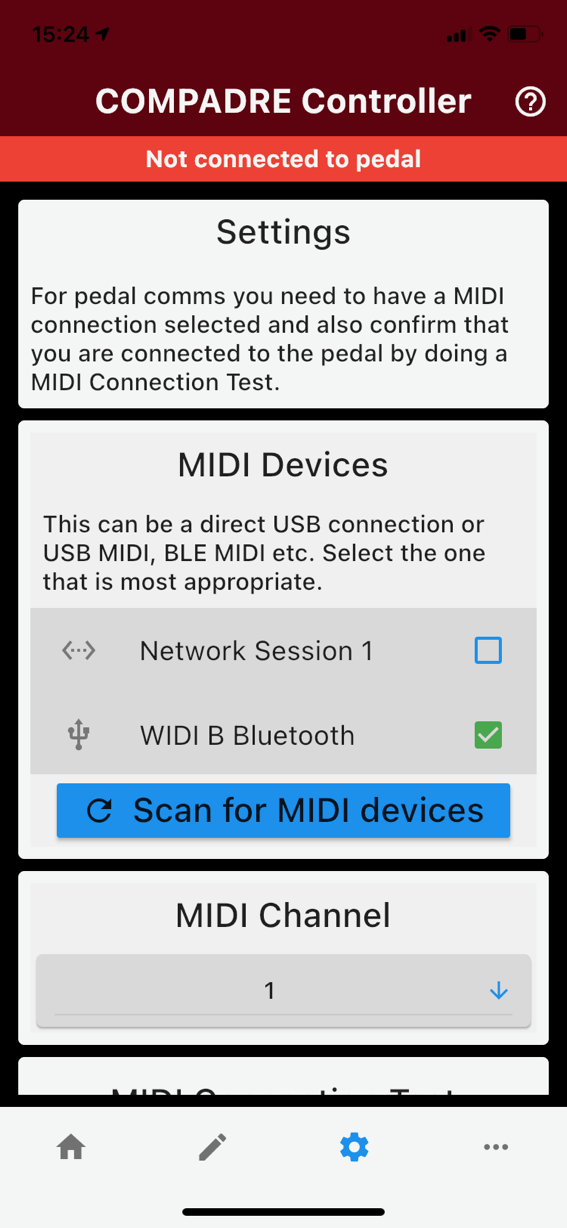

If using a MIDI connection,
you may see something like ‘USB MIDI Interface’. Here we have selected a MIDI
Bluetooth connection. Select what you think is appropriate (or all if you are
in doubt).
Next pick the MIDI
Channel your pedal is setup for.
Compadre by default is
on MIDI Channel 1.
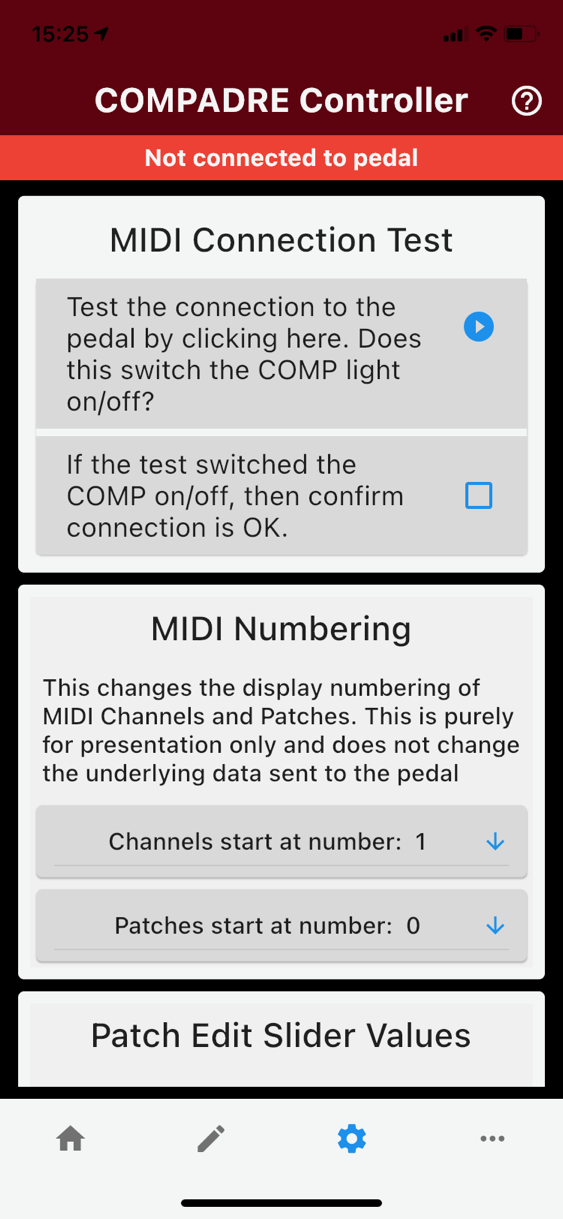
Then go to MIDI
Connection Test
Test the connection by
pressing where indicated. If you are properly connected, then you should see
the red COMP light go on and off as you press. If that happens then great! If
not then check your connections, MIDI Channel.
If the test switched
the pedal on/off then select the confirmation box. The
“Not Connected to pedal” banner will disappear.
NOTE: Do not cheat!
Only confirm the connection is OK if you actually have a connection.
Unfortunately, Strymon does not give any information out about how to read
anything from the pedal so this relies on you making sure that you only confirm
when all is good.
Edit a Patch
Go to the Edit Screen
and click on the middle area of a patch. (The white bit of patch 6.)
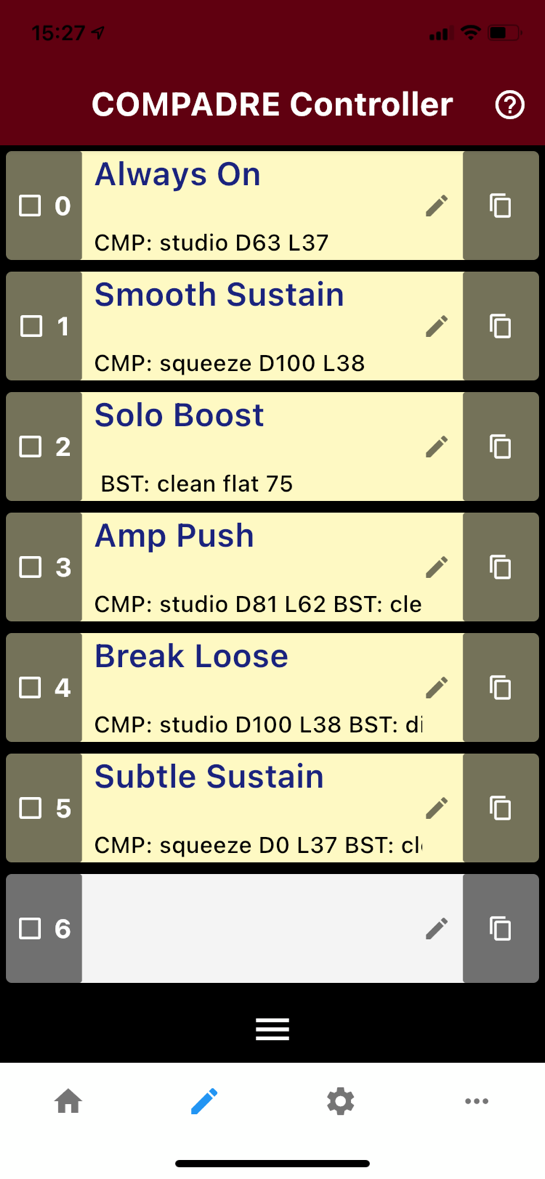
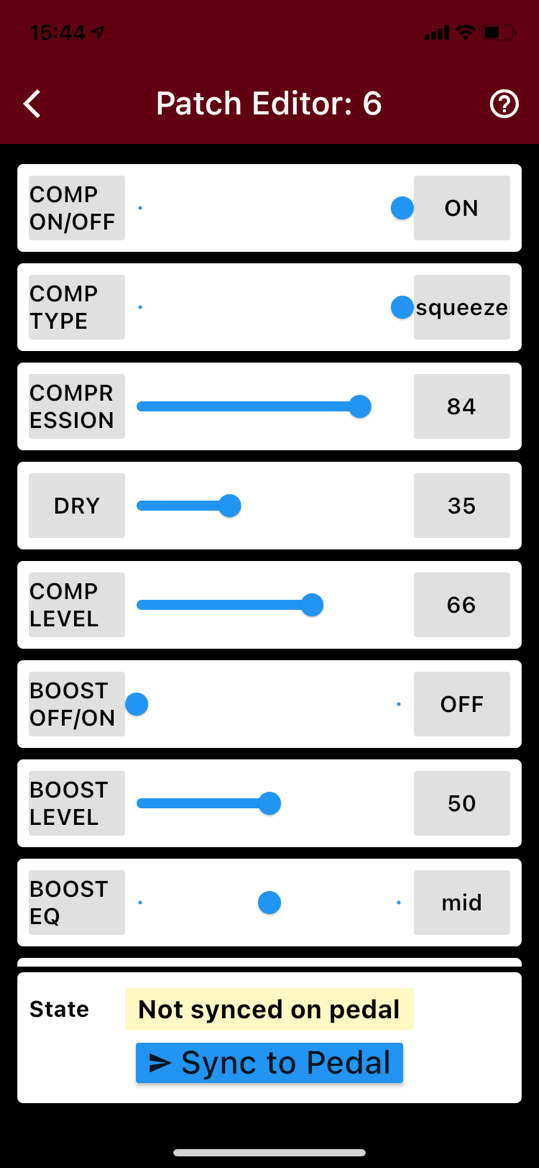
Patch 6 was selected.
You now see all of the available settings. Move the sliders. As you do, you
should hear the changes from the pedal. For more accuracy, slide to the general
value you want, then tap on the label to the left to move down 1 step, tap on
the value to the right to move up 1 step.
This is effectively
tweaking the knobs on the actual pedal.
Don’t forget to scroll
down the screen to see all available settings including Patch Name and Details.
At this point nothing
is saved in the pedal. If you are happy with the settings, then press

If you look at the
pedal, you should see the BOOST button flashing red and then Blue as it saves
the patch. At the end of it you’ll see the state Synced on pedal in Green.

When you go back to
the Home Screen you will see it Green too.
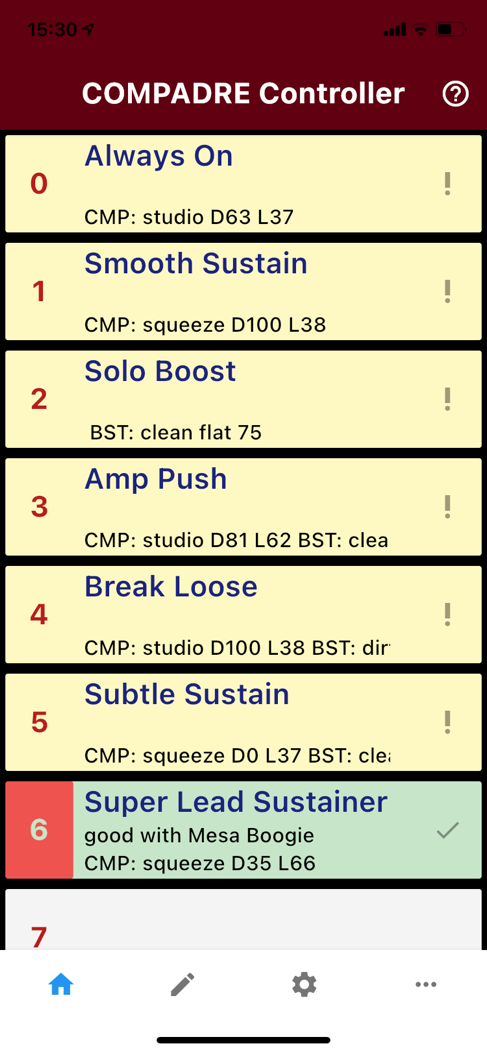
All good to go… Now if
you press patch 6, then it will send a Program Change to the pedal.
Any patches that are YELLOW
have been edited in the app, but not saved to the pedal. From this screen, if
you press say patch 2, it will send ALL of the settings individually to the
pedal. You may hear a burst of noise as they all get sent. The sound of the
pedal will reflect the settings in the app for patch 2 but nothing will be
saved in the pedal. If you send a Program Change 2 via a MIDI controller it
will recall what is in the pedal not what you have just sent.
Just try it all out.
It is difficult to mess things up up the pedal unintentionally. The App only ever
saves to the pedal when you press sync to pedal. Pressing any of the patches on
the home screen will never save anything in the pedal.
You are always warned
if you are about to make permanent changes to a patch. Try stuff in higher
patch number out of the way at first.
Help Manual
The full manual is in
the App. Just go to the … Screen and see it there.
Bonus Top Tip
As has been said
before, there is no way to read any existing patch data from the pedal. Strymon
do not provide that information. I have asked them. Why don’t you ask them as
well?
It is actually pretty
quick to get existing patches into the App…
First go to Settings
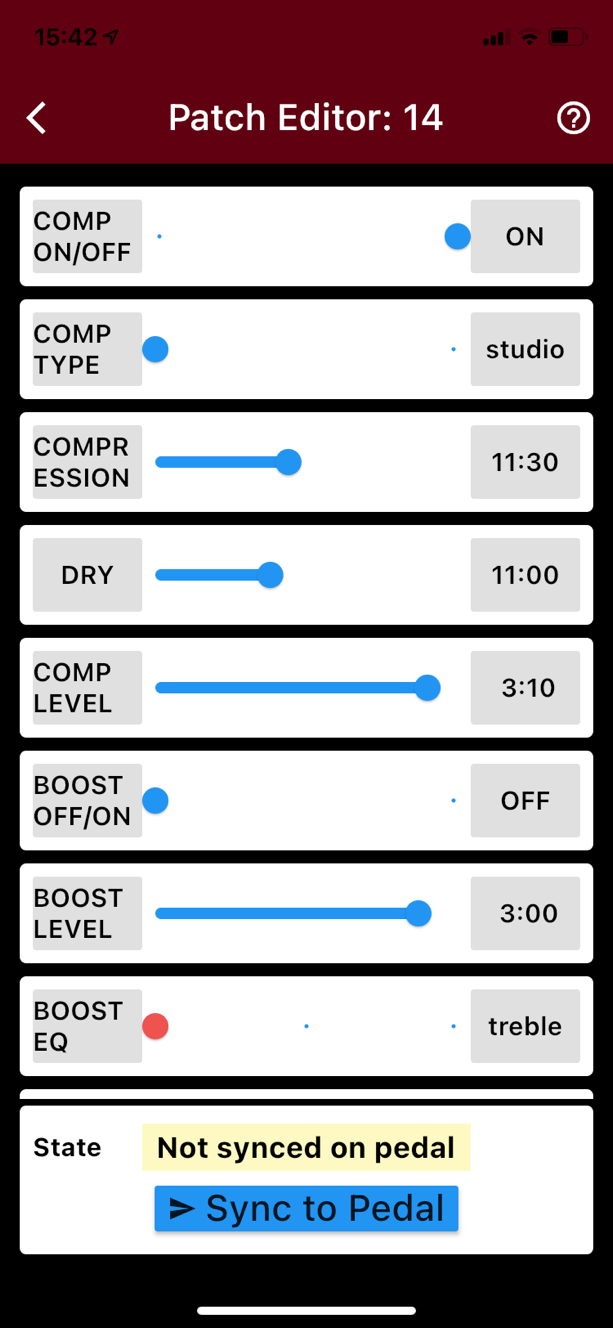
and in Patch Edit Slide Values select ‘Display as Clock times’
Now when you go to
Patch Editor you will see the values ranging from 8:00 through 12:00 to
4:00. Now look at your pedal see where
the pointers are and just set the app the same.
For example:

Support
Contacting us:
Checkout the Facebook
group: http://www.facebook.com/groups/mezzotone
If you have any queries,
please email: support@mezzotone.com